Dagelijkse activiteiten
Gezondheids management
Inzichten & Analyse
Over Crono Care Coach
Help & Support
Asthma is a common chronic lung condition where the lungs overreact to triggers. This overreaction leads to an asthma flare-up (or attack or exacerbation), in which an inflammatory response occurs and the lung muscles tighten. That causes shortness of breath. Medically, we're (fortunately) learning more about asthma all the time, and more different types asthma are being recognised. With lifestyle adjustments, medication (maintenance and rescue medication during a flare-up), many people get their asthma under control. But there are also two groups for whom this isn't enough: difficult-to-treat asthma, and severe asthma. For these two groups, the medication doesn't work well enough and symptoms and flare-ups keep coming back. More information about asthma can be found at the astmaVereniging Nederland en Davos.
Crono Care Coach is an app written by someone who lives with severe asthma himself, and uses it himself to gain better control over his life (and partly his asthma). This page gives an overview of how Crono Care Coach can help you live with (severe) asthma.
Crono Care Coach has a number of features that help you find balance in life with (severe) asthma. The features can be used individually, although in my experience the combination of these features gives you different insights and can really change the conversations with your lung nurse and pulmonologist. Below is an overview of how the features can be used for (severe) asthma.
Color your day is based on the "traffic light method" often used in an asthma action plan (more on that later). In the traffic light method, the state of your asthma is given a color with a meaning. Green means your asthma is under control and everything is going well. Keep it up! Orange means there are warning signs — take measures to prevent an flare-up. Red means it didn't work out to prevent a flare-up (which unfortunately happens).
Within color your day, you color each part of the day (night (optional), morning, afternoon, and evening) with the colors you choose yourself. The defaults are green, orange and red. I personally also use light-orange (preventive) and light-red. These are the same colors as in my action plan.
You can adjust color your day to your own preferences. Go to Settings -> Color diary settings in the app. If you don't see this option, check whether premium is active and whether you've enabled the feature via Settings -> General settings.
The order shown on the home screen is determined by the day order. Choose the order that feels most comfortable to you. The "Night registration" toggle indicates whether you also want to register the night..
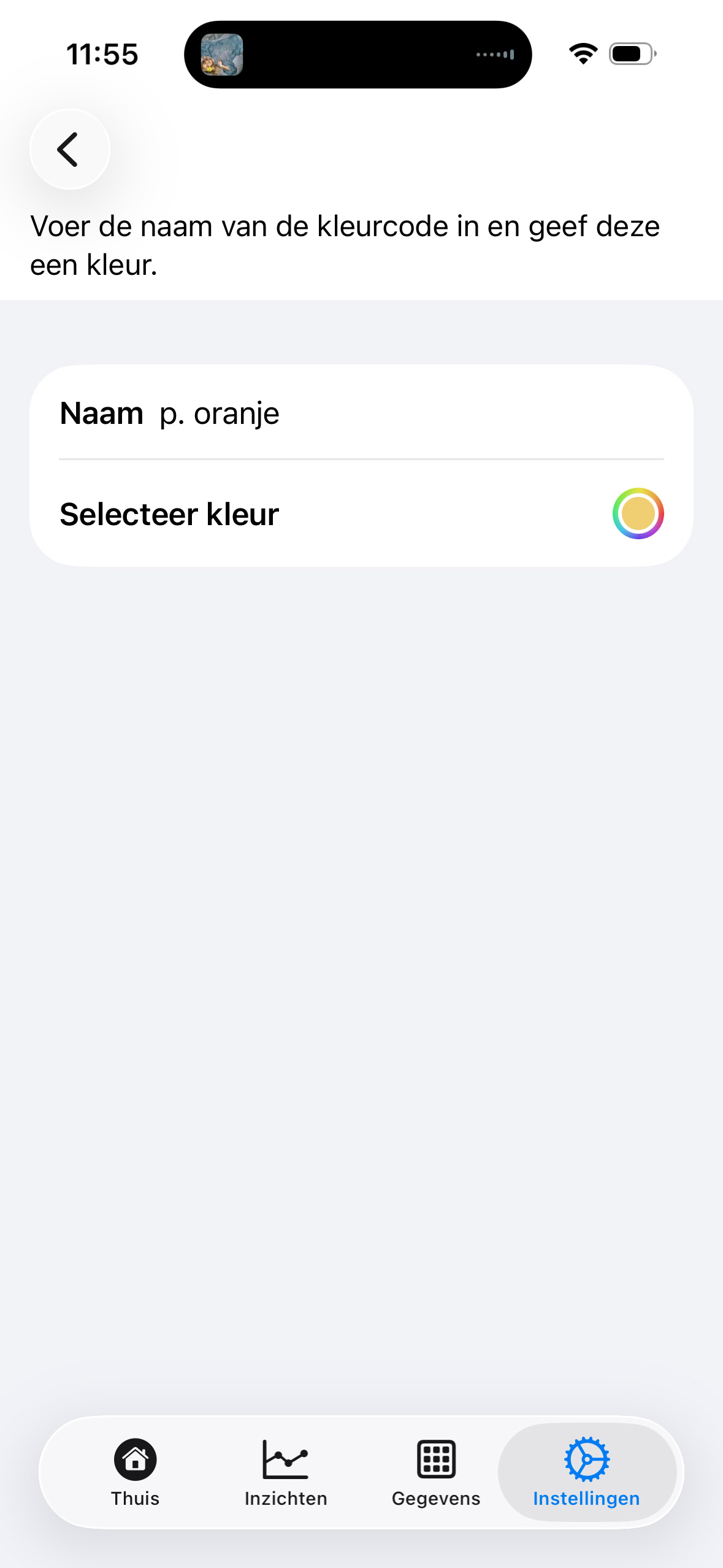
When you tap on colors, you can change the colors and names yourself. This is the list you'll see when registering.
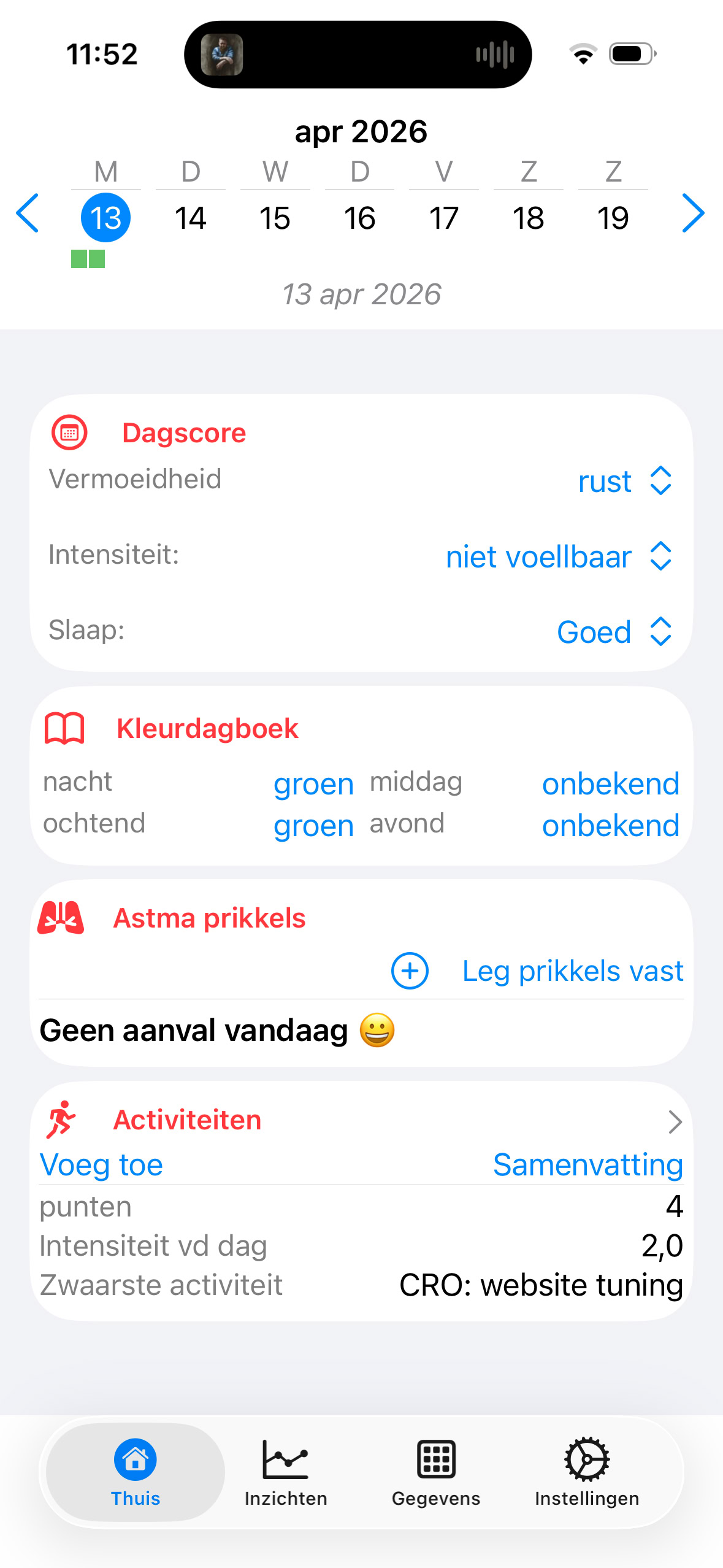
Registering color your day is simple. On the home screen, you can tap any part of the day to select the color you want to register. At the top of the home screen, you'll see that color appear next to the correct part of the day. This gives you quick insight at a glance into the week view.
Registering the colors every day might seem over-the-top, but those few seconds per day (I do it at fixed moments, such as waking up, going to bed, and when I register an flare-up) give you insight. A pitfall of mine is that I often think I'm back in green too quickly. The colors of the week help me with that. I also often check via insights how the month is going, and that helps me make my life a bit more predictable. Finally, the exports help (especially year-on-year) to recognise patterns (springtime, for example) and have different conversations with your healthcare provider, because I often forget those couple of mild flare-ups two months ago, or that I'd been wheezy for a month.

Asthma flare-ups are (almost) always caused by triggers. There are two types of triggers::
Crono Care Coach has the trigger registration feature to register a trigger quickly and easily.
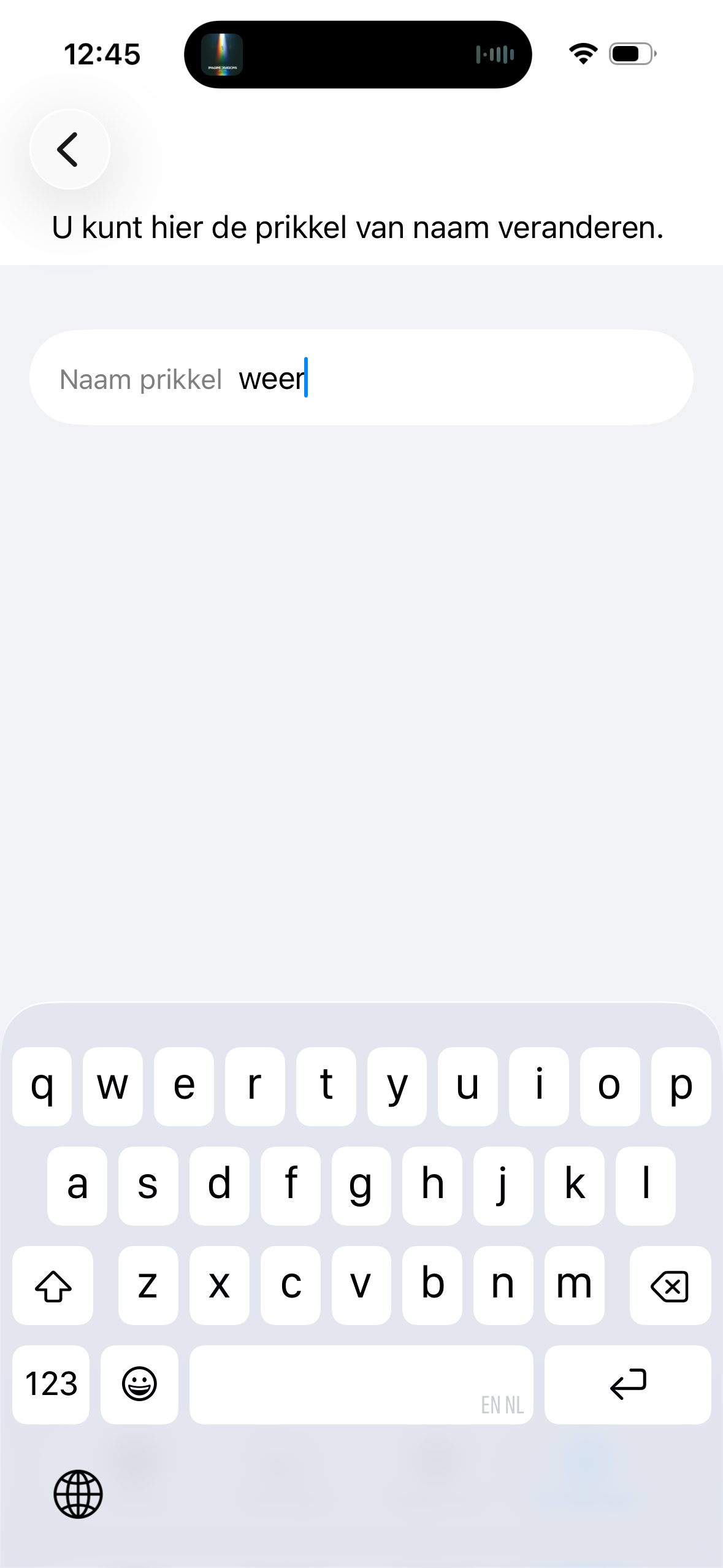
To make registering triggers as easy as possible, Crono Care Coach uses the term standard trigger. These are the triggers you know well and that occur often. They're shown when registering a trigger, so you can quickly and easily (because when you're short of breath you have other things on your mind) select the right trigger. Via Settings -> Trigger registration settings you reach the settings. If you don't see this option, check whether premium is active and whether you've enabled the feature via Settings -> General settings.
Under "my condition" you select the condition for which you want to register triggers. You can also tap on "Standard triggers" to see your standard triggers. Here you can add, change and remove triggers yourself.
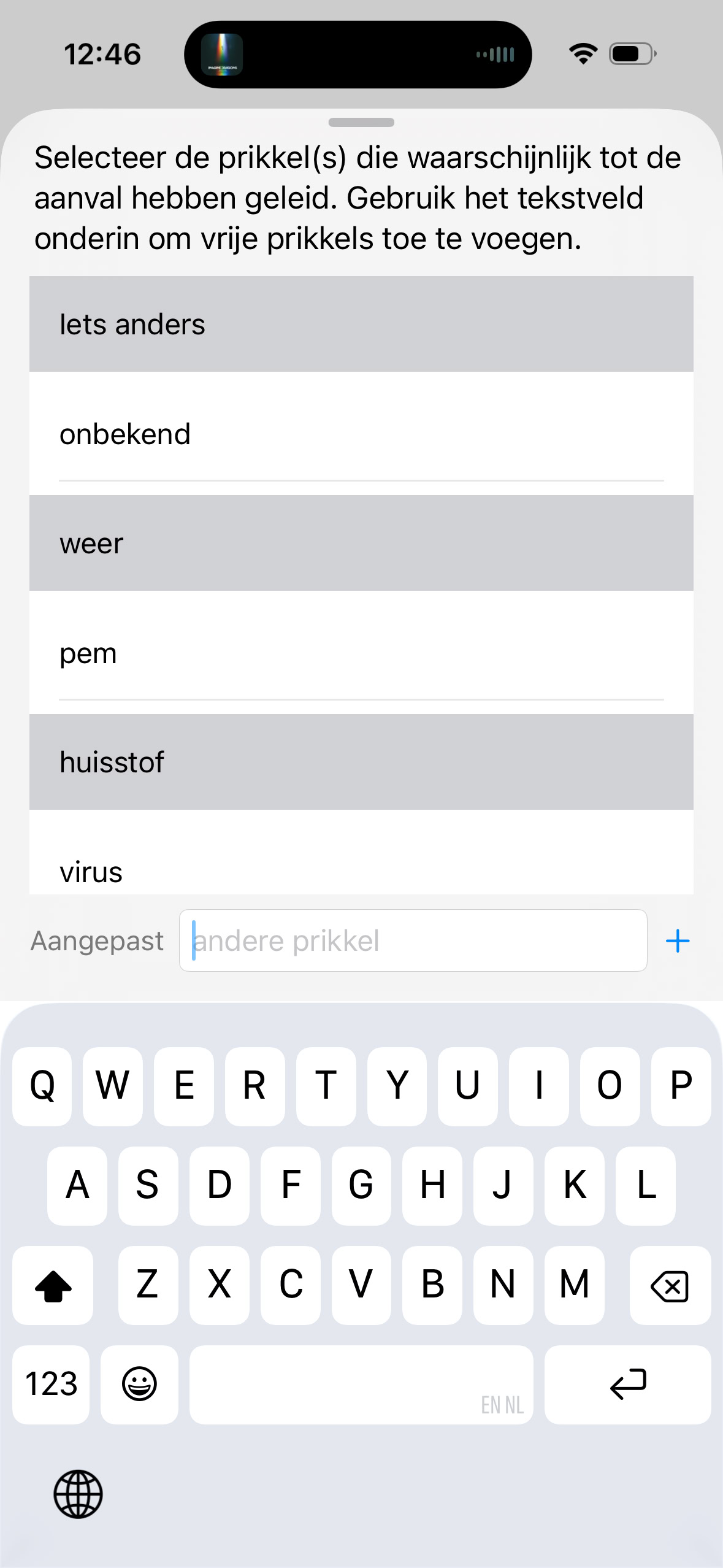
Registering triggers also takes place from the home screen. Tap "Record triggers" there to register a new flare-up (trigger). A small popup is shown containing your standard triggers. Tap the triggers that apply to the flare-up. You can use the text field at the bottom for a non-standard trigger and add it via the plus sign. Selected triggers have a dark background. To deselect, tap the trigger again. Swipe the popup downwards to save your changes. You'll also see on the home screen how many triggers you've had that day.
Registering triggers helps you gain insight into what you've been most bothered by. This happens via the "Insights" tab. My experience is that very often, at the moment of an flare-up, you do have a suspicion of the trigger, but you forget it because of the energy it costs. By registering, you help recognise patterns, also year-on-year. For example, it seems I'm more bothered by hay fever than I thought, because I can compare via a handy yearly overview. And that helps again in the conversations with the healthcare provider.
The activity log isn't necessary for everyone with asthma, like color your day and trigger registration are. But often, if you have difficult-to-treat or severe asthma, your energy is limited — through fatigue, through the energy that goes (again) into a flare-up, or because you push past your limits too often. Healthcare providers often mention pacing (staying within the limits of your day) and the spoon theory. That's exactly what the activity log was developed for.
The activity log lets you track every day what you do and how many points (energy) you spend in a day. One point represents about 30 minutes of activity, or up to and including 6 on a scale of fatigue and shortness of breath. So if you're extremely tired after showering, that's 1 point. But also, if you've done something at maximum effort, that could easily be 4 points. Points are always personal. In my experience, those 30 minutes work out fairly well.
Via Settings -> Activity log settings, you can set a few things. If you don't see the option, check whether you have premium and whether the feature is enabled via Settings -> General -> Activity log. Besides choosing whether you want the "Add" button on the left or the right, you can configure standard activities here by tapping on "standard activities". Standard activities are comparable to the standard triggers and are your common, frequently occurring activities. The "automatically add" option in a standard activity ensures that the activity is added every day automatically, with the number of points you assign it.
I personally have "shower & dress", "breakfast", and "daily planning" added automatically. Lunch and dinner vary too much for me.
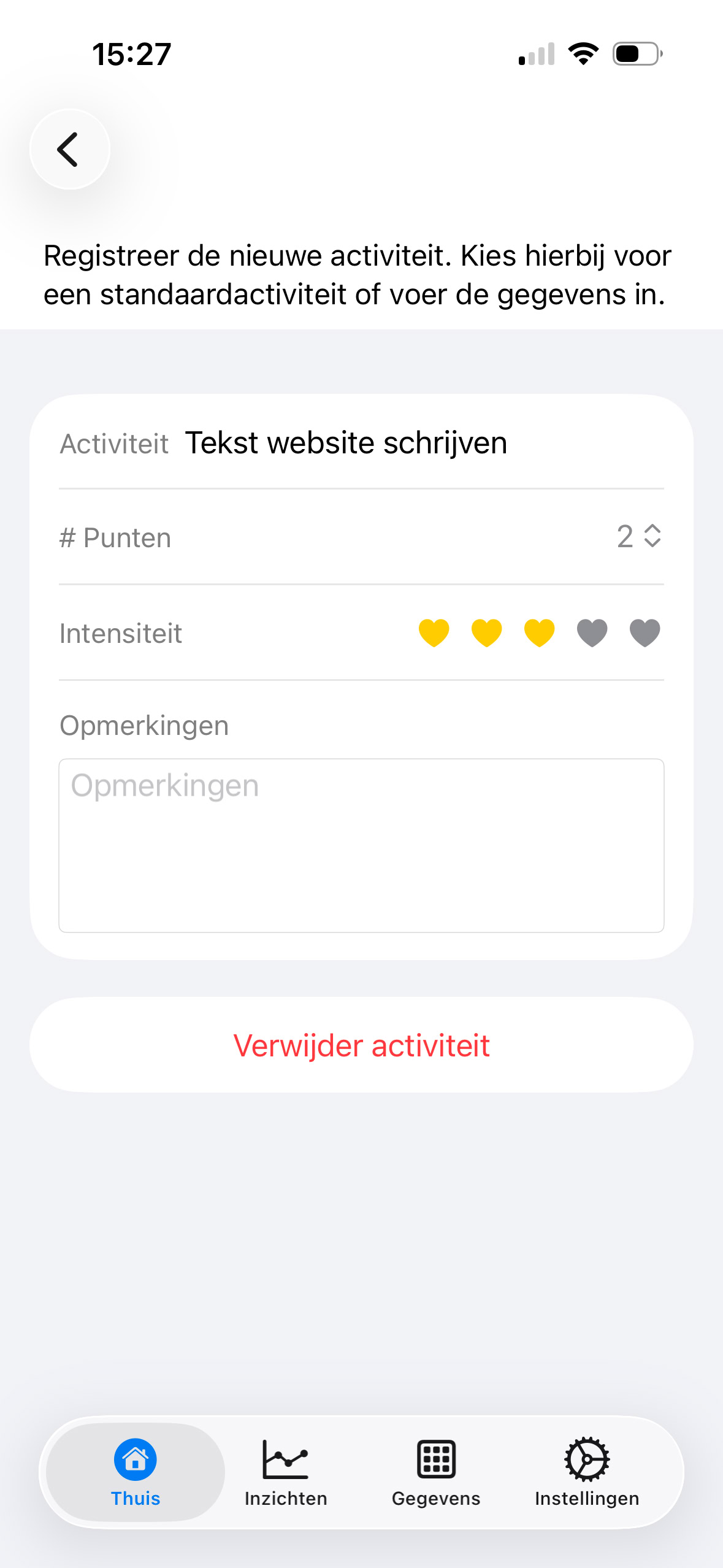
Registering activities also happens from the home screen. As soon as you tap "Add" under Activities there, a new screen is shown. There you can select a standard activity (and the name and points are taken over automatically), or name an activity. Give it a number of points, an intensity from 0 (no intensity) to 5 (very intense), any comments, and tap save. If you tap on the "activity block", you'll get the list of activities for that day. By swiping, you can quickly move a day forward or backward. Or use the date to select a date. On the home screen, you see the total points for the day and the most intense activity of that day.
t sounds like a chore to keep a diary. Especially when the occupational therapist told me to do it, but it gave me insight into where my energy was leaking and how many points I could handle in a day. And that's actually also why registering can help with (difficult-to-treat or severe) asthma. If you have to apply pacing, and you know from experience (through registering) that you have, for example, 14 points of energy per day and you're already at 10 points by two o'clock in the afternoon, you can decide to take more rest.
Another advantage, through insights, is that I've noticed that over time I could do a little more each time. I've also included the points in my action plan, to help myself pace for when I'm in orange or red.
Living with (difficult-to-treat or severe) asthma isn't easy. Chronic energy limitations, the unpredictability of asthma which makes one day better than the next, and that appointment you'd been looking forward to but still have to cancel because your lungs unexpectedly play up. Crono Care Coach can't prevent this, although the insights into your data in the Insights screen can help you gain more understanding of your asthma. A few graphs can help you gain insight into your asthma.
The "color diary overview" is perhaps one of the most powerful views. It shows you the current month (use the arrows or month to choose another) and which colors you've chosen. The order here is fixed. Top right is the night, bottom right morning, bottom left afternoon, top left evening, so you go round the circle in one day. For me, this view gives a very good picture of how stable my asthma is and how I'm doing. If I see a lot of light-orange or orange, I know I need to slow down. Do you see particularly the night turning orange? Then you can discuss this with your pulmonologist.
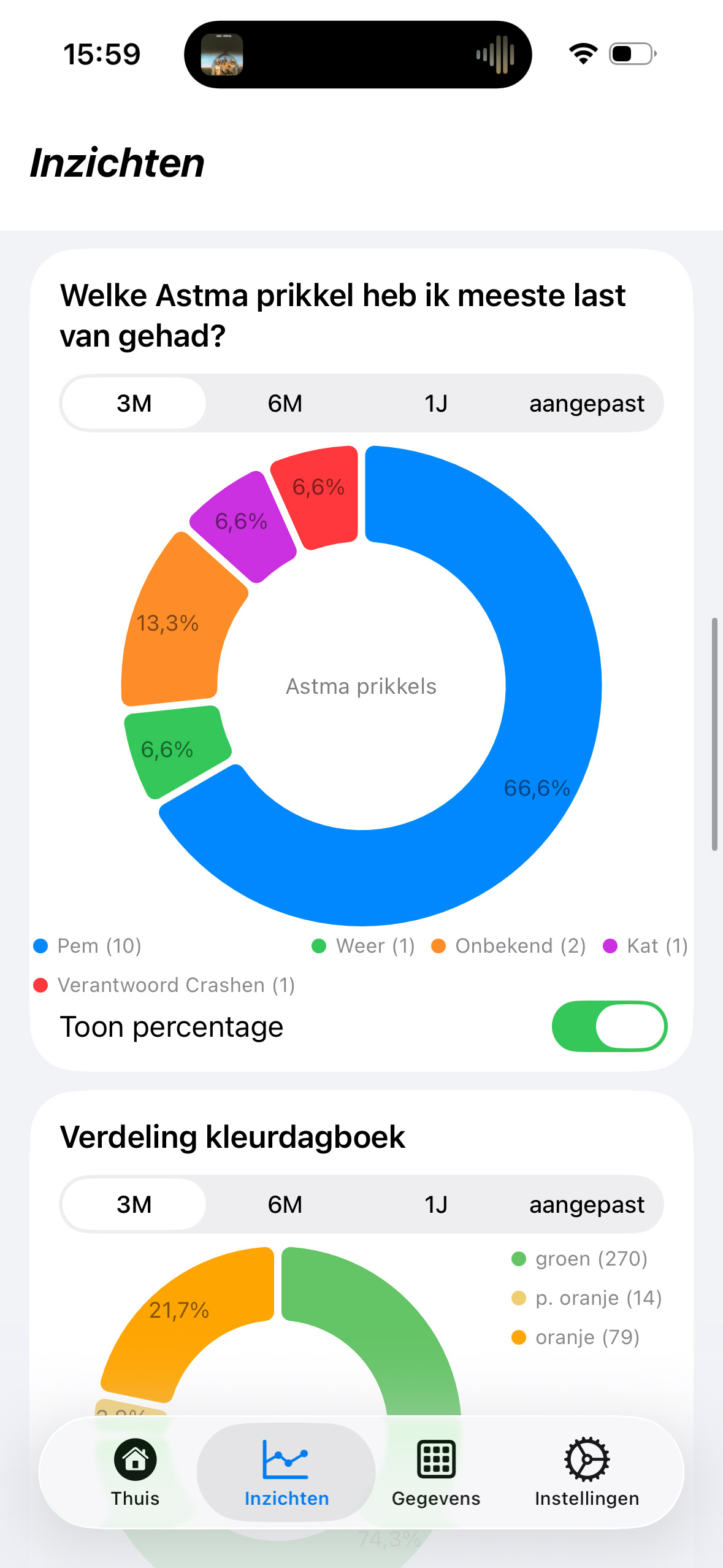
Another handy insight is the trigger distribution. Here you see a distribution of all the triggers you've registered over a certain period. You can choose between 3 months (3M), 6 months (6M), 1 year (1Y), and a custom period via custom. This distribution helps me realise what I've been most bothered by — sometimes not even asthma, but the PEM that comes with my long COVID.
If you have to apply pacing, then the insights into activities are also important. You can change the view yourself, per week (W), per month (M), per 3 months (3M), per six months (6M), or per year (Y). You can also drag through the chart to look at details. I personally like the 6M and Y view. The 6M to see trends, and the year view for peaks and stability.
The personal action plan, like the color diary, is based on the "traffic light method" also used in asthma action plans (Dutch) and COPD action plans, among others. You always set up the action plan together with your healthcare provider(s). Crono Care Coach offers the option to record the personal action plan digitally, so you always have the action plan with you, and always up-to-date.
You can find the personal action plan via Data -> Action plan. If you can't find the action plan there, check via Settings -> General settings whether the action plan is enabled as a feature. Within the action plan, there's a menu top right. Via Settings, you can give the name and date of your action plan. The colors option shows the colors of your action plan. I've made them the same as those of the color diary. That doesn't have to be.
Once the colors are configured, you'll see a number of questions per color. Try to answer these questions as well as possible together with your healthcare provider. You can save the answers in the text field shown when you tap on the question.
You can use your action plan yourself by reading through the answers to your questions. I do that from time to time to help remind myself that it's not bad to have an asthma flare-up and that I need to take the time to recover.
Time with a healthcare provider is often limited, which means that often, as you're going out the door, you suddenly think of something you'd still wanted to say. Like the asthma flare-up from a few months ago, or that something is actually going better. Crono Care Coach has a few features that, with some preparation, can change the conversation with your healthcare provider. Because Crono Care Coach is privacy-first and the information is only available to you, you have to export the data yourself. For (difficult-to-treat and severe) asthma, there are a few handy overviews that can be used in the conversations. You can also email many healthcare providers — I personally make the overviews a week in advance and send them off, so the healthcare provider sees them in the file before I go into the conversation.
The export functions are in Crono Care Coach in the data screen. You can also view and change all the data you've registered there. For my asthma control, I particularly use the "Export color diary" and "Export trigger overview" functions.
The export color diary generates a handy yearly overview with the colors you've registered. When you keep this up over several years and export it, you gain insight into whether your asthma is comparable, becoming more stable, or actually getting worse. Also because the seasons often play a role in asthma.
When you tap "Export color diary", you get the choice for the year and the "2. generate" button. After generating, an "Export" button is shown. Tapping export will show a "share screen" you can use to email or print.
The export trigger overview generates a handy yearly overview with all the triggers registered over a calendar year. Just like the color diary, you can look year-on-year together with the healthcare provider at which triggers you've been most bothered by. I personally find this a handy overview, with which I can also see that my asthma, despite my feelings, is calmer this year than last year.
The procedure is the same as "Export color diary". After tapping on it, you choose the year, click "2. generate" and an export button is shown.


Sometimes we also have conversations with healthcare providers in an emergency situation. Then it helps to have a document at hand containing all the data important for a healthcare provider. For example, which rescue medication you have, so you don't have to tell everything yourself. That's why your personal action plan is so important. Via Data -> Action plan -> Choice menu -> Export, you can generate a PDF at that moment which you can show the healthcare provider (or you show the medication and information directly on your phone). The healthcare provider then has all the information needed to help you.

This website uses cookies. See our privacy policy for details.